Official Guide / First Connection
Shadowrocket Setup Guide:
Import, Connect, and Test
Complete your first setup in five steps. Import your existing server details into Home, choose how to route traffic, then check actual access and rule matches after connecting.
These steps focus on iPhone and iPad. Screenshots help you identify screens and fields; the current app on your device is the source of truth for the layout, menu locations, and available options.
Step 01 / Prepare the Connection Details
Add a Server or Import a Subscription
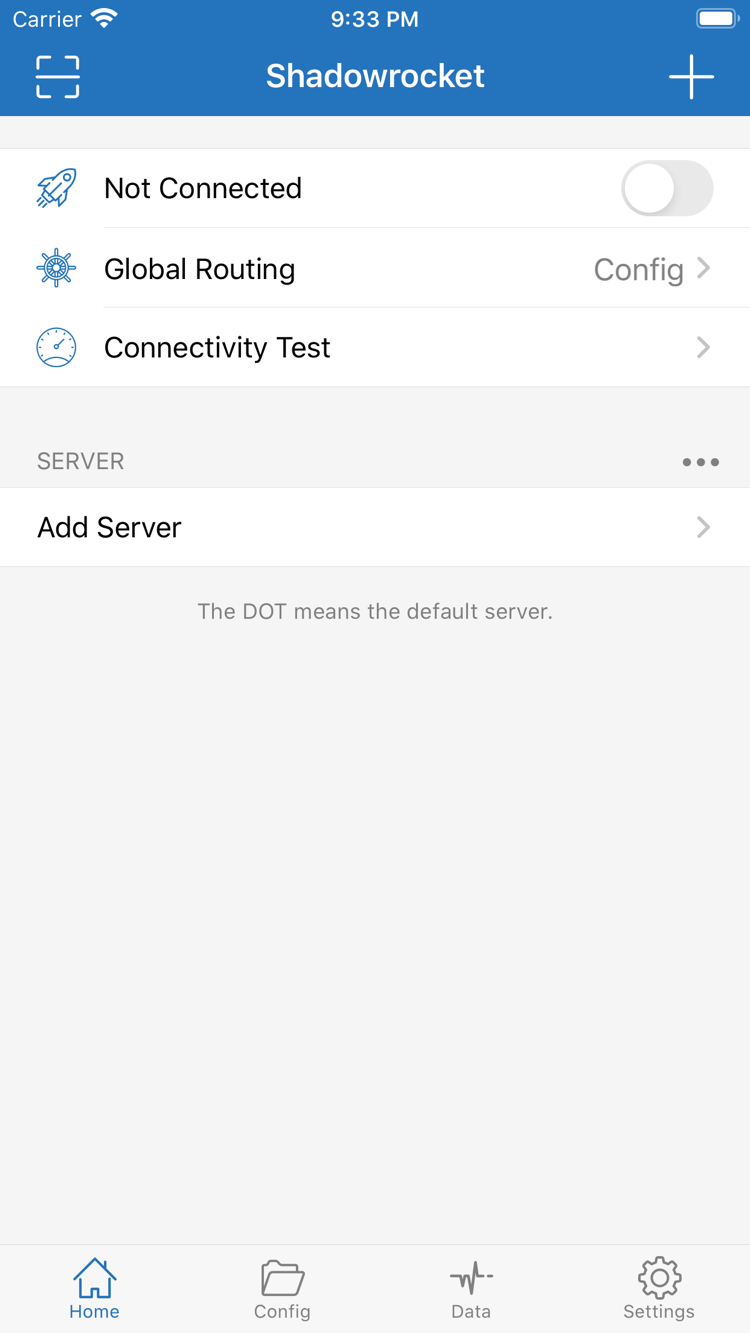
First, identify what kind of details you have and use the corresponding option. A single server usually requires a protocol, address, port, and credentials. A subscription is a complete link used to retrieve a server list. They aren’t interchangeable just because they look similar, and a subscription link shouldn’t go in the Host field for a regular server. Open Shadowrocket, go to Home, and find Add Server in the SERVER section, or use the add option on the screen to open Add Server.
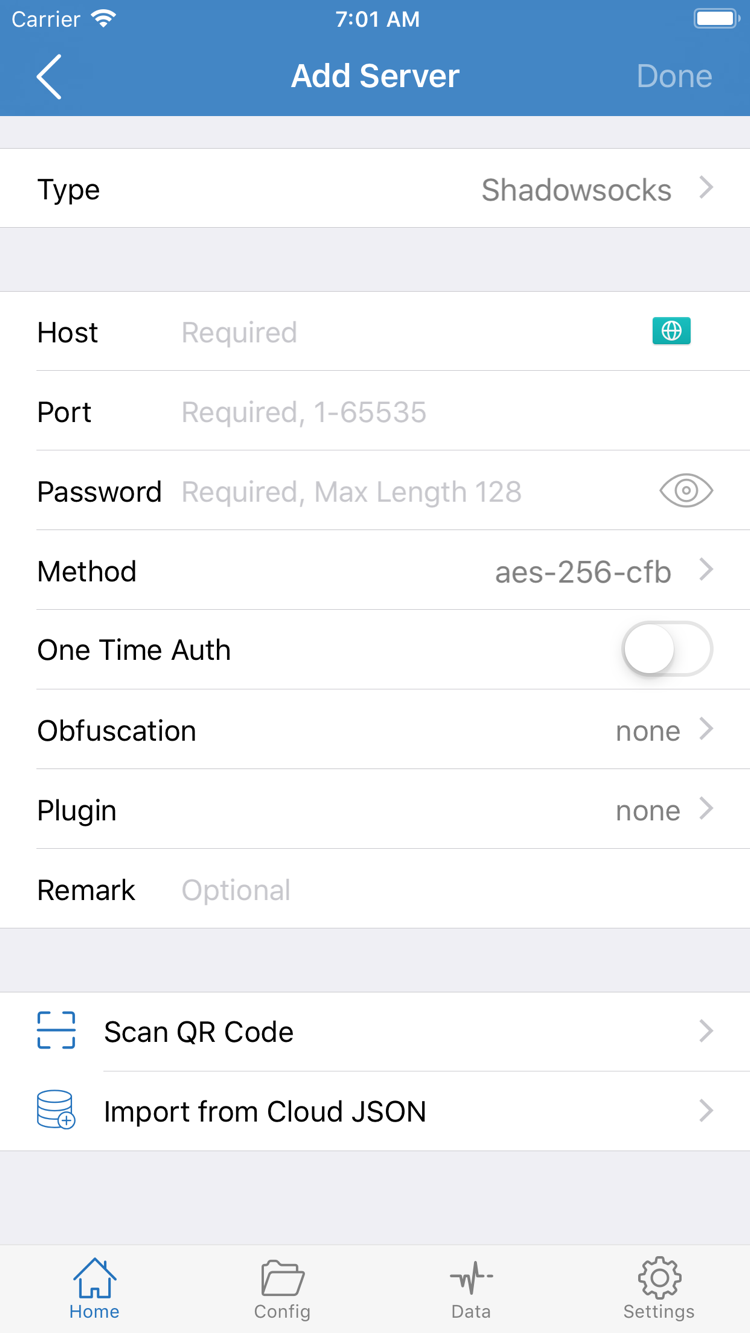
Enter Details Manually: Choose Type, Then Check the Fields
In Add Server, tap Type first and select the protocol that matches your existing details. Type determines which fields are required; don’t change it just to reduce the amount of information you need to enter. For example, Shadowsocks requires Host, Port, Password, and Method. Other types may require their own identity details or transport settings. The screenshot shows one form; not every protocol uses the same fields.
Enter each value in the correct field: the server address in Host, the actual listening port in Port, and the supplied values in Password and Method. After pasting, check for leading or trailing spaces, line breaks, and full-width punctuation. Don’t paste an address along with explanatory text. If your details include additional parameters, open the relevant settings and check them individually. If required information is missing, consult your server configuration or ask your original service provider instead of guessing.
When you’re done, save the entry and return to Home. Check that it appears under SERVER, then select the server you want to use. Scan QR Code is for importing an existing QR code in a supported format. Import from Cloud JSON requires data in the corresponding format; it isn’t a general-purpose way to import any link.
Import a Subscription: Choose Subscribe and Keep the Full Link
If you have a subscription link, choose Subscribe under Type in Add Server, then paste the complete link into the URL field. Add a name to help you recognize it, if needed, and save. Keep the path, parameters after the question mark, and letter case unchanged. Don’t copy only the domain, and don’t include a period or quotation mark from the end of a message.
https://example.com/sub?token=xxxxThe example above uses clearly fake values and is not a working subscription. After saving and fetching the subscription, return to Home and check whether actual server entries appear under SERVER. Seeing a subscription name alone doesn’t mean its contents loaded successfully. Use the app’s subscription update option to fetch the contents again, then check that the entries are complete. Don’t repeatedly change routing modes at this stage; check Global Routing in the next step.
Step 02 / Decide How Requests Are Handled
Choose Global Routing
After importing a server, return to Home and tap Global Routing. This setting determines how requests are routed; it’s separate from selecting a server. First, understand the three modes: Config, Proxy, and Direct. Turning on the connection switch does not mean every request will use the selected server.
Config: Route Traffic Using the Active Configuration
Use Config when you want rules to determine how requests are handled. Open Config and check which configuration file is active—not just whether a familiar name appears in the file list. Open that configuration and review Rule and its final handling rule. Rules determine which requests go to PROXY, DIRECT, or REJECT. They’re generally matched in order, so a broad rule near the top may prevent a more specific rule later from handling a request.
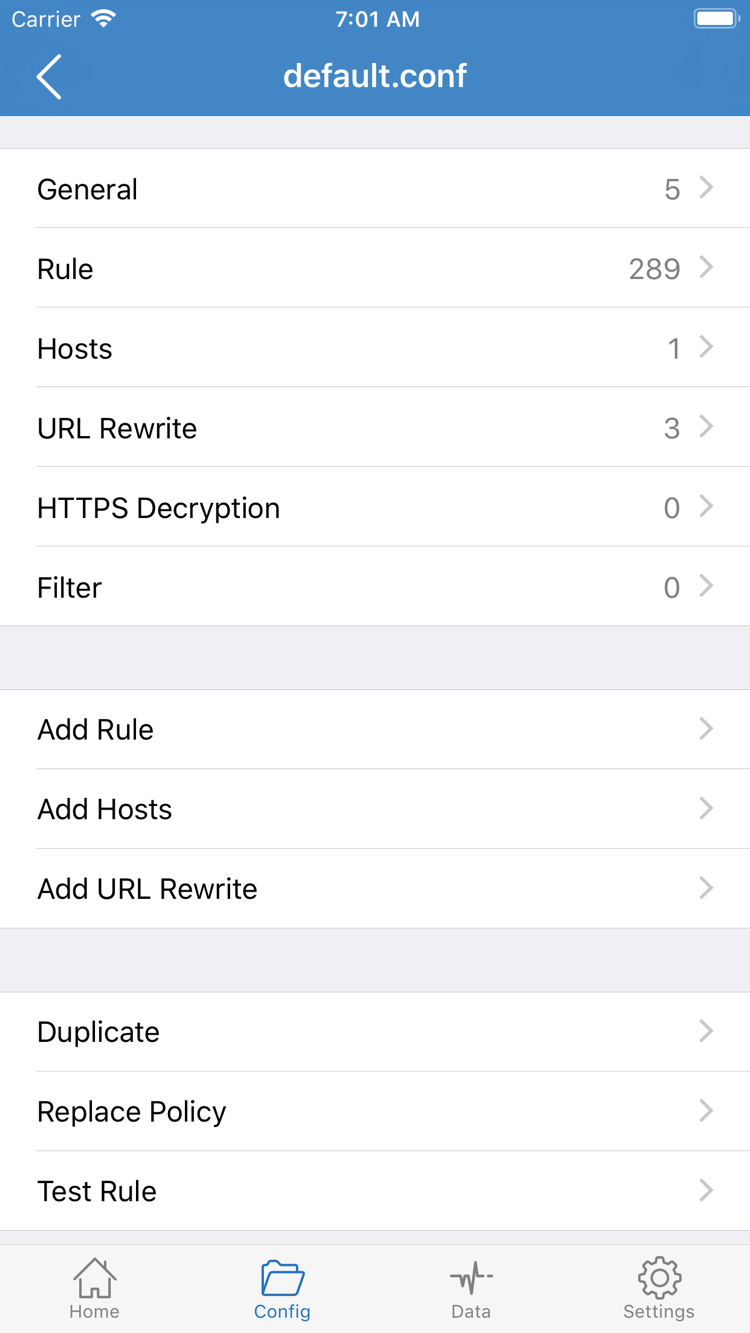
In the official screenshot, General, Rule, Hosts, URL Rewrite, and HTTPS Decryption are separate sections of the configuration editor. For this setup, focus on checking the active configuration and Rule; you don’t need to enable every section. Don’t change HTTPS Decryption or install related certificates just to complete your first connection. They aren’t prerequisites for this guide.
[Rule]
DOMAIN-SUFFIX,example.com,PROXY
FINAL,DIRECT
This short example illustrates rule order: example.com and its subdomains match the first rule; all other requests go directly through FINAL. It isn’t a complete configuration for every use, and you shouldn’t replace an existing file without checking it. If a destination should use a proxy but matches FINAL,DIRECT instead, a successful server connection doesn’t mean routing is working as intended.
Proxy and Direct: Compare Traffic Routes
Proxy routes general requests through the proxy, which can reduce variables from Rule-based routing during troubleshooting. Results still depend on the device’s network, server capabilities, and any necessary system bypasses; this mode doesn’t guarantee identical behavior for all traffic. Direct connects requests without the proxy, which can help check the underlying network or restore direct access. It doesn’t show whether the proxy is working.
After choosing a mode, return to Home and check the current Global Routing value. If you’re using Config, note the active configuration name too, so you can compare the results with its rules later. For more on writing rules, see Rules & Config. If policy and rule terminology is unfamiliar, start with Protocols. Then continue here to complete the connection setup.
Step 03 / Establish the Connection on Your Device
Turn On the Switch and Check VPN Authorization
Return to Home and check these settings before connecting: the server selected under SERVER is the one you intend to test, and Global Routing shows the mode you chose. Subscription entries may change after an update, so don’t rely only on what you remember selecting last time. When ready, turn on the connection switch at the top of Home. Not Connected may appear while disconnected.
The first time you connect, the system may ask permission for Shadowrocket to add a VPN configuration. This system authorization lets the app establish a network tunnel on your device; it isn’t a request to buy the app again. Make sure the prompt is from the Shadowrocket app you just opened, then follow the system instructions to allow it and complete any required device authentication. If you cancel, you’ll usually need to start the connection again from Home and authorize it.
After authorization, return to the app and check whether the status at the top changes to connected and the switch stays on. If the switch quickly turns off again, don’t immediately reinstall the app or toggle several settings in a row. Note any system prompt, app error, or interruption, then check the relevant issue in the final step.
Check Connection Status and Server Availability Separately
An established system VPN tunnel only means the device’s connection mechanism has started. It doesn’t confirm that the selected server authenticated successfully or that every destination is accessible. Conversely, a result from Connectivity Test for a server doesn’t mean the connection switch is on. For a first-time setup, check each item separately: the server is selected, the mode is correct, and the tunnel is established. Then test actual access.
If another VPN connection you enabled is also active on your device, check which one is in use before testing so you don’t attribute its behavior to Shadowrocket. Keep your network conditions stable during this test. Changing between Wi-Fi and cellular while also changing servers and modes makes it difficult to identify what caused a failure.
Step 04 / Check Actual Access, Not Just Status
Test the Connection and Check That Rules Work
Check three things separately: whether the device’s existing network works, whether the selected server responds to the test method, and whether a request to your destination follows the expected route. One test result can’t answer all three. Use the same destination and steps for each comparison, repeating the test after each change so the results are comparable.
- Check the underlying network. If it’s safe to pause the connection, turn off the switch and visit a page you know is directly accessible. Make sure the device isn’t waiting for a network sign-in and that the network itself is working. If the underlying network is down, restore Wi-Fi or cellular service before turning the connection back on in Home.
- Run Connectivity Test. Tap Connectivity Test on Home and check the result for the selected server. Settings such as Test Method affect how the test runs. The result reflects only this probe; it isn’t a measure of actual webpage loading speed and doesn’t guarantee that every type of connection will work.
- Visit a specific test destination. Open a browser and visit a destination you actually intend to use. Check whether it loads and whether the same error appears. Refresh the request rather than relying on a page already stored on the device, and avoid opening many pages at once so the results don’t get mixed up.
- Check whether the route matches the mode. If you’re using Config, find the destination domain in the request records available in the app and check the matched rule and policy. A destination going DIRECT may be the expected result of a rule, not a sign that the connection is off. If it matches REJECT, review Rule.
If the destination won’t load but regular webpages work, temporarily switch Global Routing to Proxy. Keep the same server and destination, then test again. If access works, check the original configuration’s rule order, policies, and DNS-related settings first. If it still fails, check the server details, server status, and whether the destination itself is available. When you’re done comparing, restore the mode you actually need; don’t leave a temporary diagnostic setting in place by mistake.
Even a successful test has limits. If one webpage loads, that only shows it works under the current conditions; other apps, UDP requests, or different networks may behave differently. You can test another action you actually need, but there’s no need to keep changing settings to chase a particular test value. Once your needs are met, keep the reproducible settings so you can roll back future changes easily.
Step 05 / Change One Thing at a Time
Check Settings and Troubleshoot Common Issues
Start troubleshooting where the failure occurs; don’t begin by resetting everything. Import errors, unreachable servers, a connection switch that turns off, and failures at specific destinations are different issues. Keep settings that currently work and note the original value before changing anything. After each change, repeat the same test from the previous step to see whether the change is actually relevant.
Subscription Saved, but No Server Entries Appear Under SERVER
First, check that Type is set to Subscribe and that the URL is complete—not truncated by a messaging app, mixed with spaces, or pasted with punctuation. Check the specific error when updating the subscription: a failure to fetch content differs from fetching content in an unsupported format. If the subscription URL returns a sign-in page or regular webpage, it can’t be used as a server list. Don’t share credential-bearing links casually in a browser. To confirm the link’s validity period and response format, check with your existing service provider.
Server Appears, but the Test or Connection Fails
Open the server entry for editing and compare Type, Host, Port, and the relevant credentials with the original details. Required settings vary by protocol; don’t assume a field means the same thing across different protocols. If it worked before but now fails, first check whether your network has changed, then confirm that the server is still available. One failed server doesn’t prove that every subscription entry is invalid, and there’s no reason to edit all entries without evidence.
Test Returns a Result, but Webpages Won’t Load
Check Global Routing first, then see whether the destination matches the expected rule. Next, distinguish between a domain lookup problem, a connection failure, and an error on the webpage itself. In Settings, check Test Method to understand what the last Connectivity Test measured. A successful probe doesn’t rule out authentication, transport settings, or an issue with the destination service. If the app provides relevant request details, use them to identify the failure stage. For a more detailed review of rules and DNS, see Rules & Config.
Connection Changes After Manual Disconnect or Network Switch
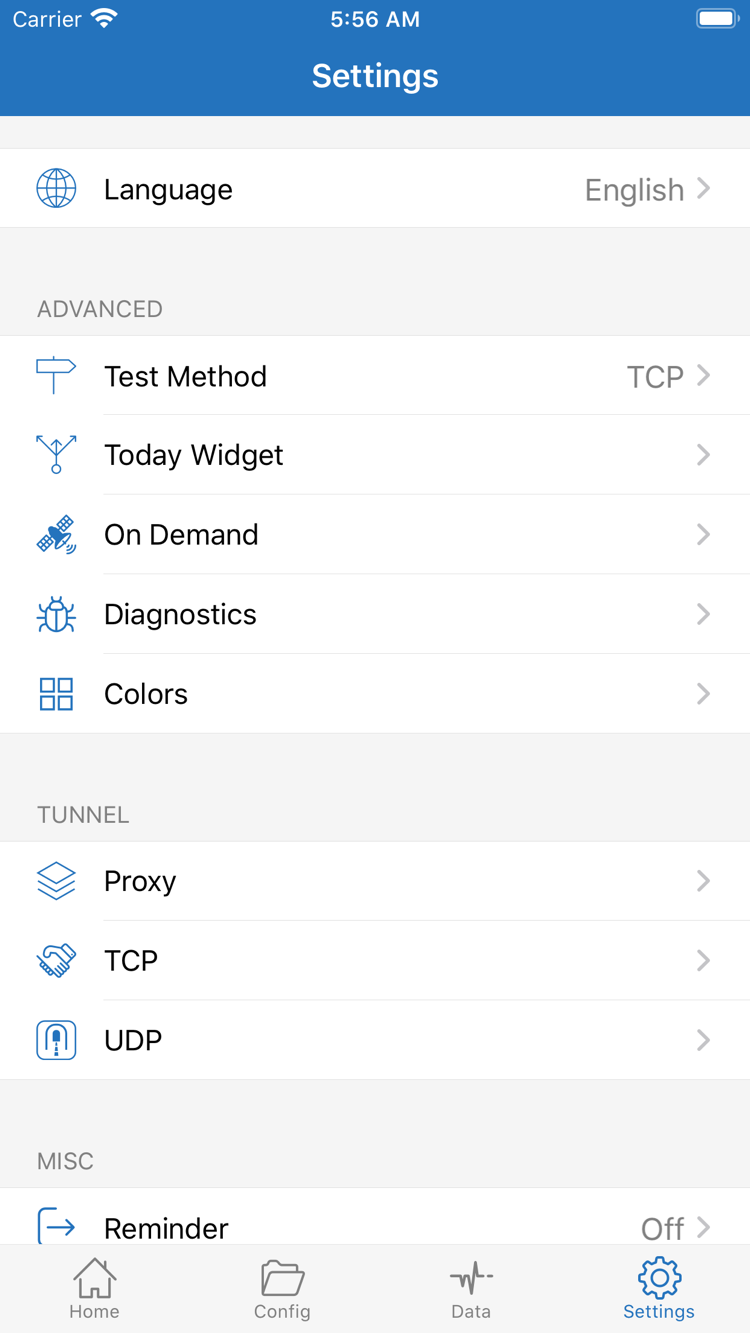
In Settings, find On Demand and check whether any on-demand connection conditions are configured. To troubleshoot a manual connection, temporarily pause the On Demand conditions you enabled and see whether the switch returns to manual control. Restore them afterward if you still need them. Switching between Wi-Fi and cellular changes network conditions, so test again instead of relying on results from the previous network.
Limit the Scope When Using Diagnostics
Diagnostics in Settings can help with further checks, but first identify what you need to find out, then use the relevant options available in your current version. Don’t change related Proxy, TCP, UDP, or other settings together just because their names look familiar. Different transports produce different symptoms, and changing unrelated settings only adds variables. If you prepare diagnostic materials, include the error description and steps to reproduce it. Remove server credentials, subscription parameters, and other personal information before sharing.
If you’ve checked all five steps and the problem persists only with a particular destination or network, keep a minimal record: which network, which mode, which destination, and what error. Check server details and service status with your original service provider, and consult the guide for rule details. Buying the app again won’t restore a connection; purchasing Shadowrocket and the availability of an existing service are separate matters.